CNVS Release Notes

Curated release notes, changelog entries, and studio notes as CNVS evolves into a calmer native Mac canvas for building software with AI agents.

Version 1.5.2 Permalink

CNVS 1.5.2 — Distraction Guard

Stop watching your agents. When one finishes, fails or needs you somewhere you can't see, CNVS tells you once, in the right place — a tile by the command bar, a macOS notification, and now your iPhone.
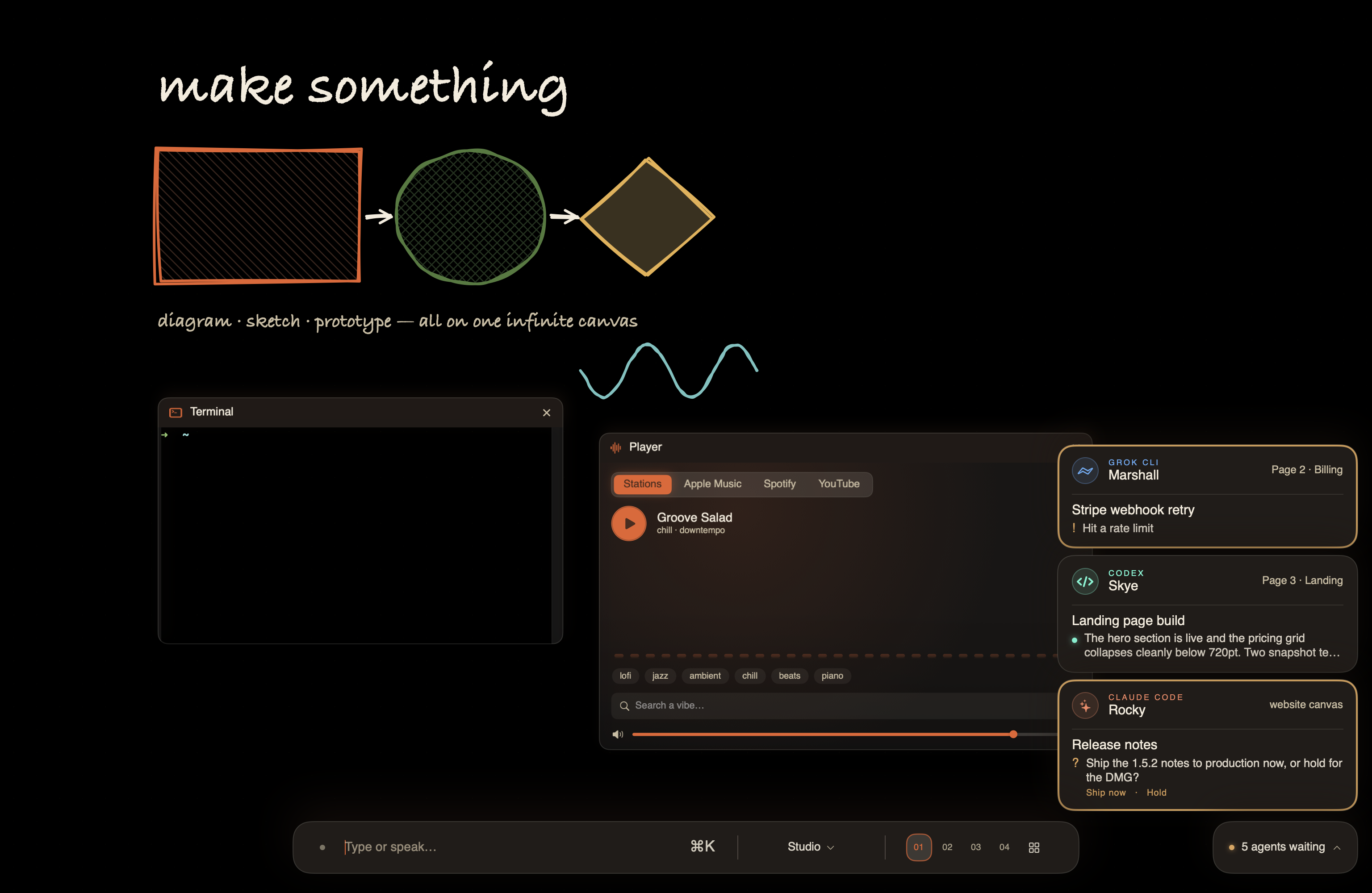
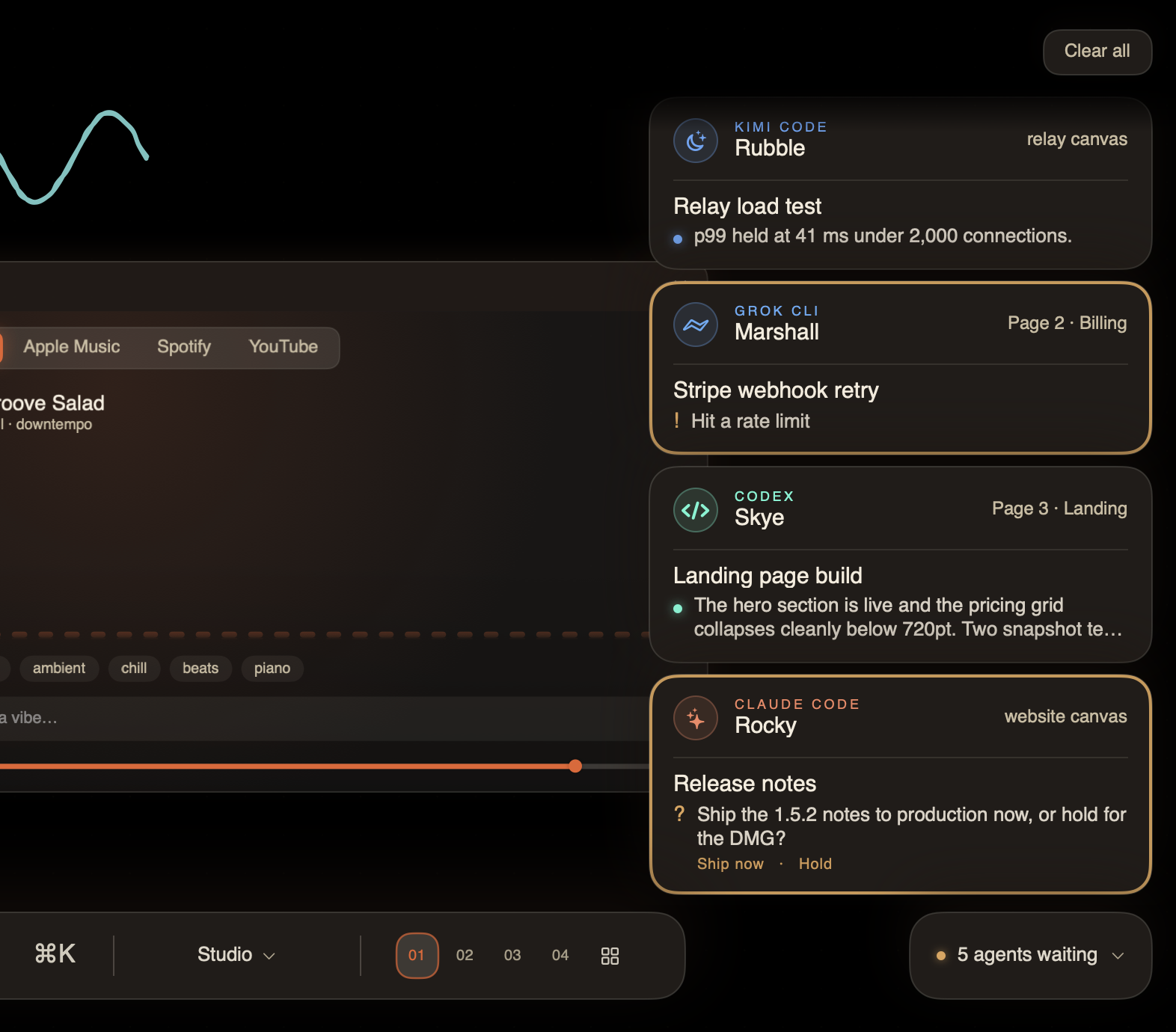
Three agent tiles standing above the command bar — a failure, a finished reply and a question with its options — beside a '5 agents waiting' chip

Running a fleet has had a quiet tax: you keep flipping between pages and canvases to check whether anything finished, or you don’t, and an agent sits blocked on a yes/no for twenty minutes. Either way the agents are steering your attention instead of the other way round.

Distraction Guard is the system that ends the checking. You work on one thing. CNVS watches everything else and interrupts you exactly once, with the agent’s own words, only when there is something for you.

A tile when you can’t see the agent

When an agent finishes, fails, or needs you — and its card is not in view — a tile rises at the bottom-right, cut from the same chrome as the command bar.

The tile is the agent’s card in miniature. It shows which CLI it is, its call sign, where it lives (“Page 2 · Billing”, “relay canvas”), the job’s title, and then the body verbatim: the reply it gave, the question it’s asking with the CLI’s own options, or the failure. Nothing is paraphrased. Questions and failures wear an amber edge; a finished reply just carries the unread dot.
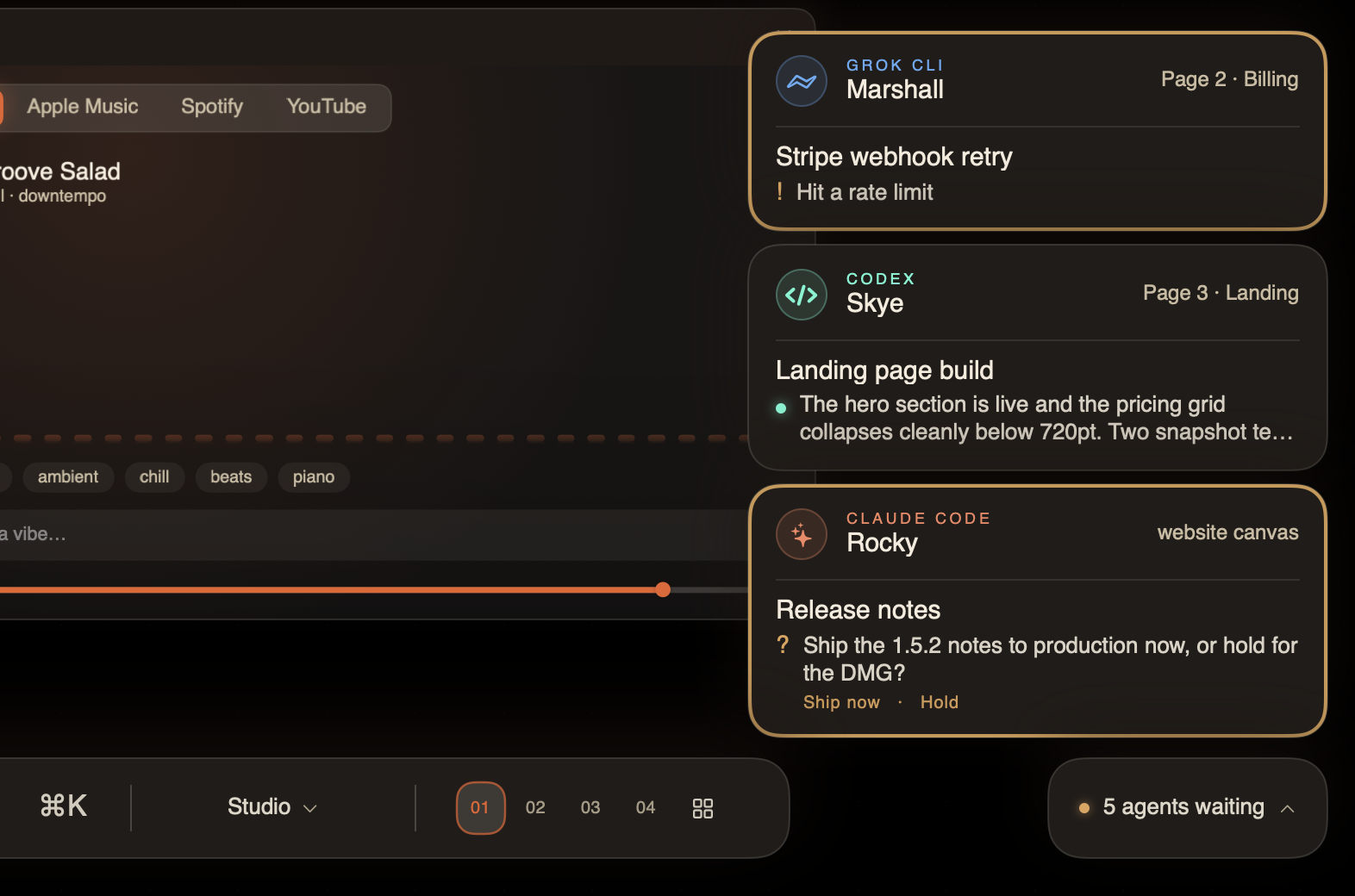
Three tiles above the command bar: a rate-limit failure, a finished reply quoted verbatim, and a question with its two options

Click a tile and CNVS takes you to that agent — across pages, across canvases.

How to use: Nothing to set up — it’s on by default. Click a tile to go to the agent, or × to dismiss it.

Nothing gets lost

A notification that disappears on a timer is a notification you miss. So a tile is never deleted by time or by navigation.

A finished tile stands for a few seconds (a failure a little longer), then tucks into a chip on the command bar’s baseline: “Skye is waiting”, or “5 agents waiting”. The dot turns amber if a question or a failure is among them. Click the chip and every tile rises back out; click again and the stack folds away as one piece.

A question never tucks itself away — it stays up until it’s answered. A tile only leaves when you focus that agent, click the tile, press its ×, or hit Clear all.

The command bar with the ‘5 agents waiting’ chip at its trailing edge

The chip opened: five tiles stacked above it, with Clear all at the far end

One surface speaks, never two

Every event picks exactly one place to appear:

  • You’re looking at the agent’s card — the card is the notification. Its body changes and its edge lights up. No tile.
  • You’re elsewhere in CNVS — another page, off the viewport, another canvas, or zoomed out on the map — the tile.
  • CNVS is in the background — a macOS notification, now with the agent’s name, the job, and the same verbatim words. Click it and you land on that agent.
  • You just typed into that agent — nothing at all. You already know.

The bell and the spoken callout (“Sky is done with the landing page build”) work as before, and stay silent while you’re looking at that agent.

Your iPhone rings too

If you’ve paired an iPhone with CNVS Pocket, the phone now gets the same alerts as a real push notification. It works like a phone call that rings on both: the Mac’s notifications don’t change, and the phone hears it as well — so walking away from your desk never means missing a blocked agent.

A question arrives with its options on the lock screen and is delivered Time Sensitive, so it reaches through a Focus. Tap the notification and Pocket opens on that agent.

Alerts are end-to-end encrypted. The Mac seals each one with a key derived from your pairing; our relay forwards an opaque box it cannot read; your phone opens it on-device. We never see what your agents said.
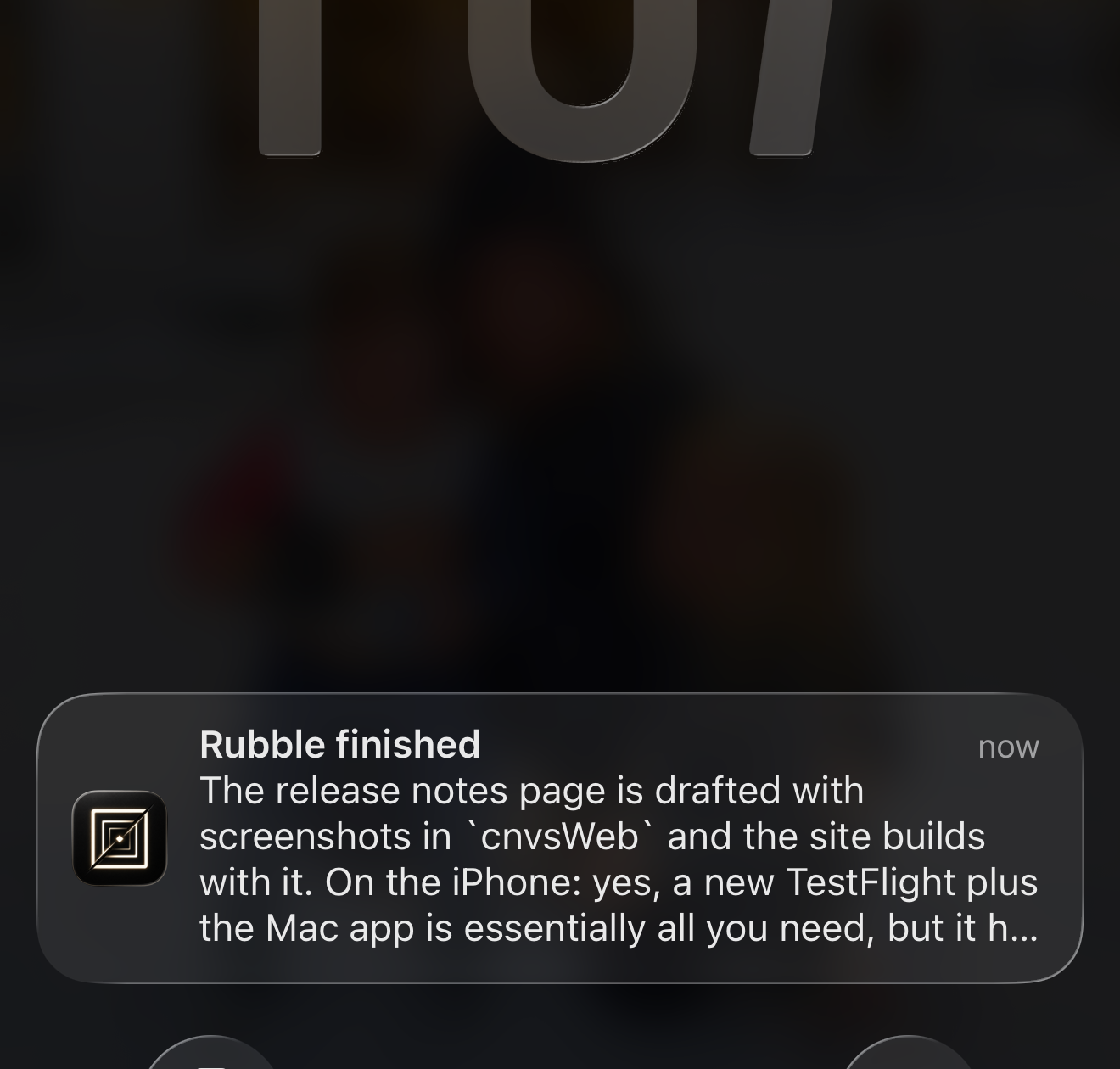
An agent’s finished reply, quoted verbatim, on the iPhone lock screen

How to use: Update CNVS Pocket on your iPhone, open it, and say yes when it asks about notifications. On the Mac, Settings ▸ Pocket has two switches — Questions & failures on my phone and Finishes on my phone. Both start on; turn finishes off if a busy fleet is too much.

The card’s body is the state

The agent card dropped its status pills and timestamps. The body now says what is actually happening:

  • Working — the tool it’s running right now.
  • Finished — its reply, verbatim, with an unread dot and one bell.
  • Needs you — its question, verbatim, with an amber edge.
  • Nothing worth saying — nothing shown.

CNVS reads these from the CLI’s own transcript rather than guessing from the screen, which is why the tile, the macOS notification and the phone can all quote the agent exactly.

One switch
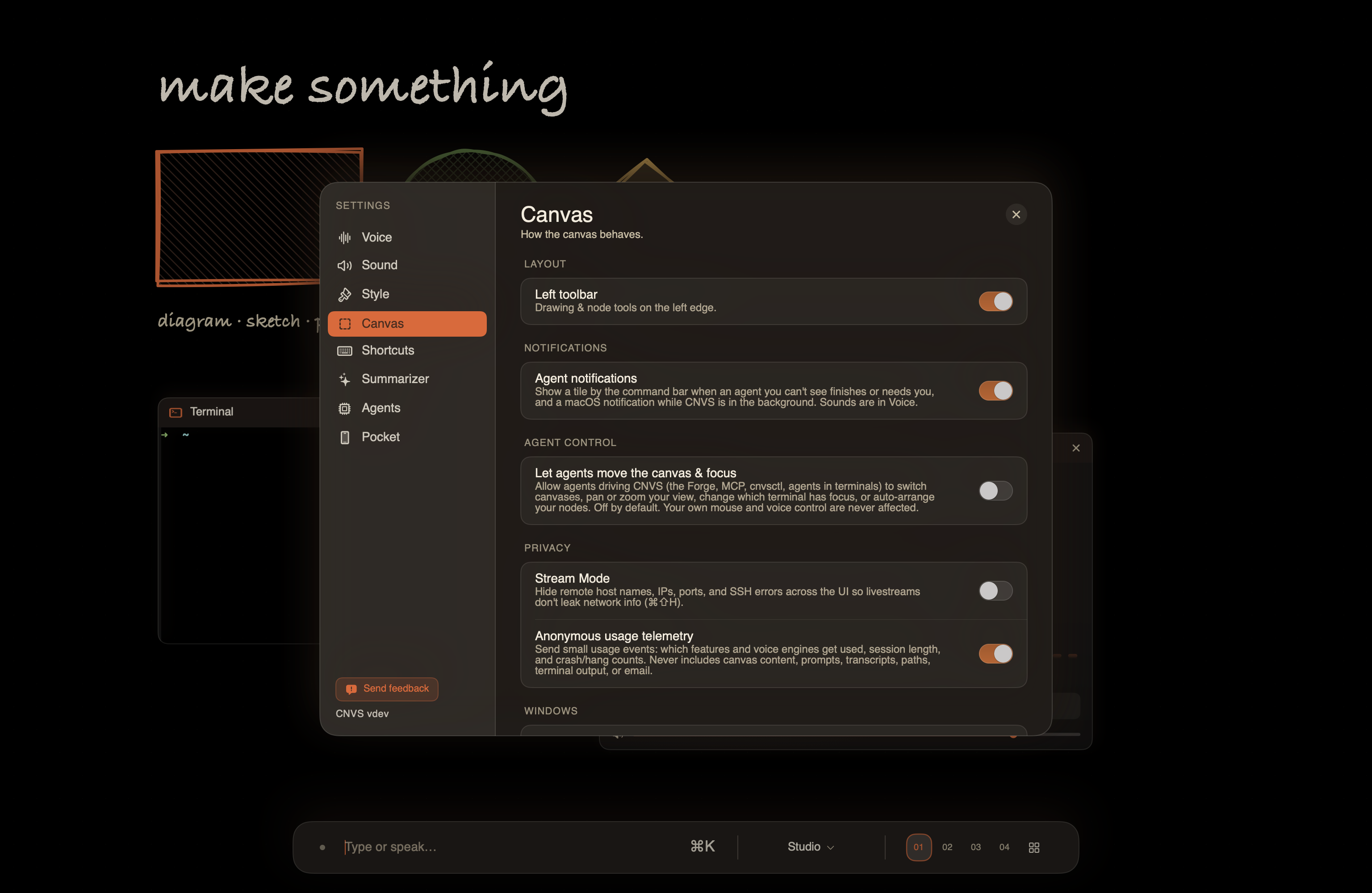
Settings ▸ Canvas, with the Agent notifications toggle

How to use: Settings ▸ Canvas ▸ Agent notifications turns the tiles and the macOS notifications off together. Sounds and spoken callouts are separate, under Settings ▸ Voice.

Added

  • Cupola — a new theme: the spacecraft cabin computer.
  • Page titles — name a page and the title rides its chip and heads its sheet on the map.
  • The shelf — zoom out past the map and every canvas sits side by side, the third camera altitude. With the default four pages, ⌘5 is the map and ⌘6 opens and closes the shelf.
  • Native status for Kimi, Qwen, Grok and OpenCode — these CLIs now report working / needs-you / finished natively instead of being read off the screen.
  • “Say who finished” — after the bell, CNVS can speak the agent’s name and task (Settings ▸ Voice).

Changed

  • ⌘-arrows never leave the page. ⌘←↑↓→ moves between windows on the current page and stops at the edge. ⌘[ / ⌘] changes pages, ⌃Tab changes canvases. ⌘←/→ no longer cycles canvases.

Fixed

  • A steering message (“also fix the footer”) no longer retitles the whole job — the summarizer now remembers the thread of what you asked.
  • Tapping the talk key by accident, with nothing said, ends quietly instead of replying.

Improved

  • One border per card: selection, working and needs-you repaint the same line instead of stacking rings.
  • The fleet briefing’s back face is the summary alone, set in the display serif.
  • The Usage node’s ledger scales with the size of its tile.
  • Terminal engine updated (SwiftTerm 1.20).

The goal of a fleet is to get your attention back, not to spend it on supervision. Distraction Guard is the part of CNVS that holds up that end of the deal: you look at one thing, and everything else comes to you.
Version 1.4.0 Permalink

CNVS 1.4.0 — Shorthand

Every agent now writes its own one-line headline, on-device. The command bar and ⌘K became one surface. Stage mode got a real sidebar and full keyboard control.

Running eight agents at once has always had the same problem: eight terminals scrolling, and no way to tell at a glance which one is doing what. Shorthand is the release that fixes that — and then removes the mouse from most of the ways you’d act on it.

Every agent tells you what it’s working on

CNVS now writes a short work title for each agent — “Command bar redesign”, “Auth token refresh” — from the request you actually made of it. Not the spinner verb, not the tool it’s currently running: the goal.

It runs on Apple’s on-device model. Nothing leaves your Mac, there’s no key to add, and there’s no per-request cost. On a Mac with Apple Intelligence off or on an older macOS, CNVS quietly falls back to the previous labels.

You see the titles in two places: press F for the fleet briefing and every card flips to its headline, and every agent row in the Stage sidebar carries one permanently.

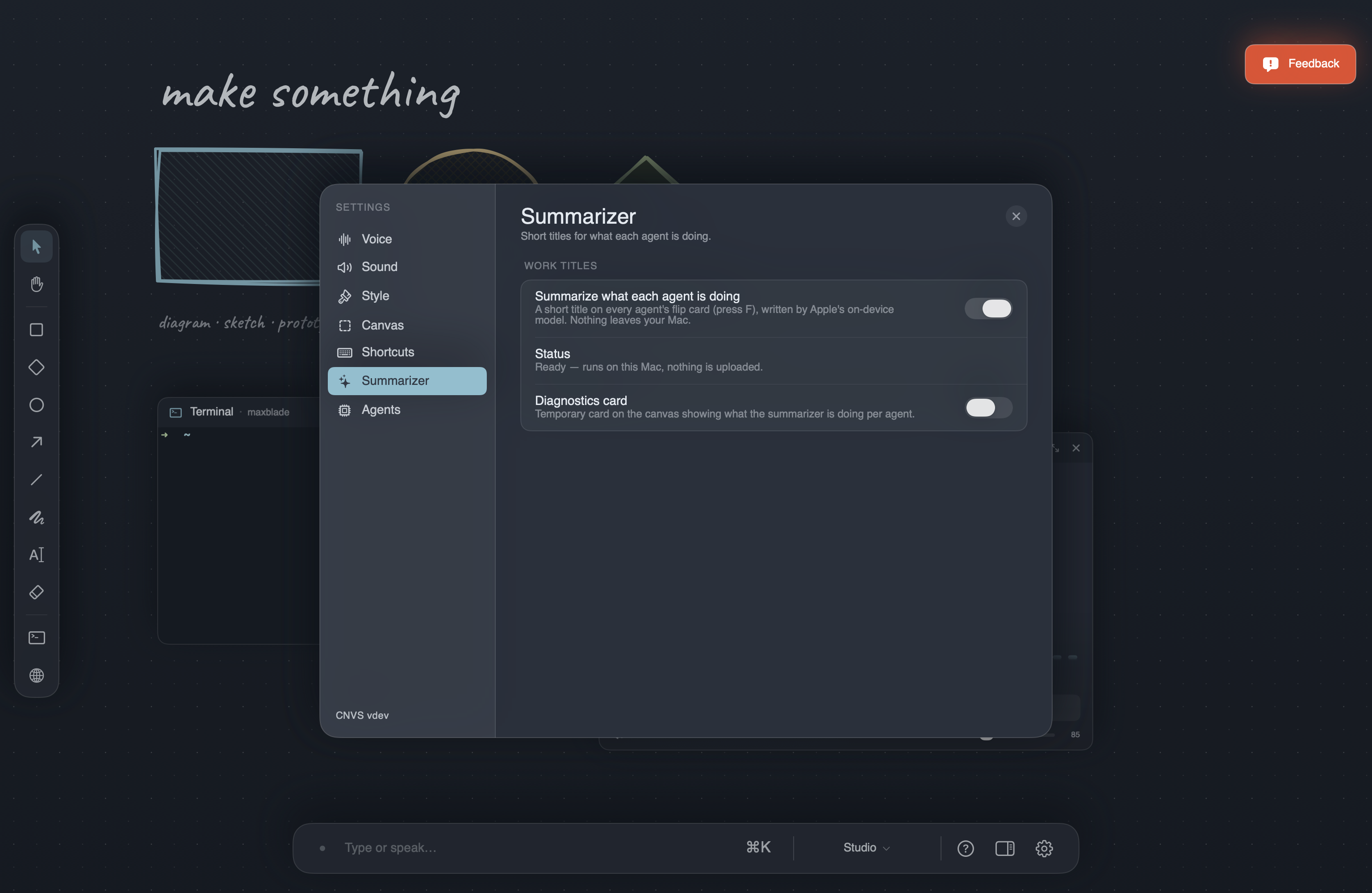
Settings ▸ Summarizer, with the on-device toggle and availability line

How to use: It’s on by default. Settings ▸ Summarizer has the toggle and tells you whether Apple’s on-device model is ready on this Mac.

One bar for everything

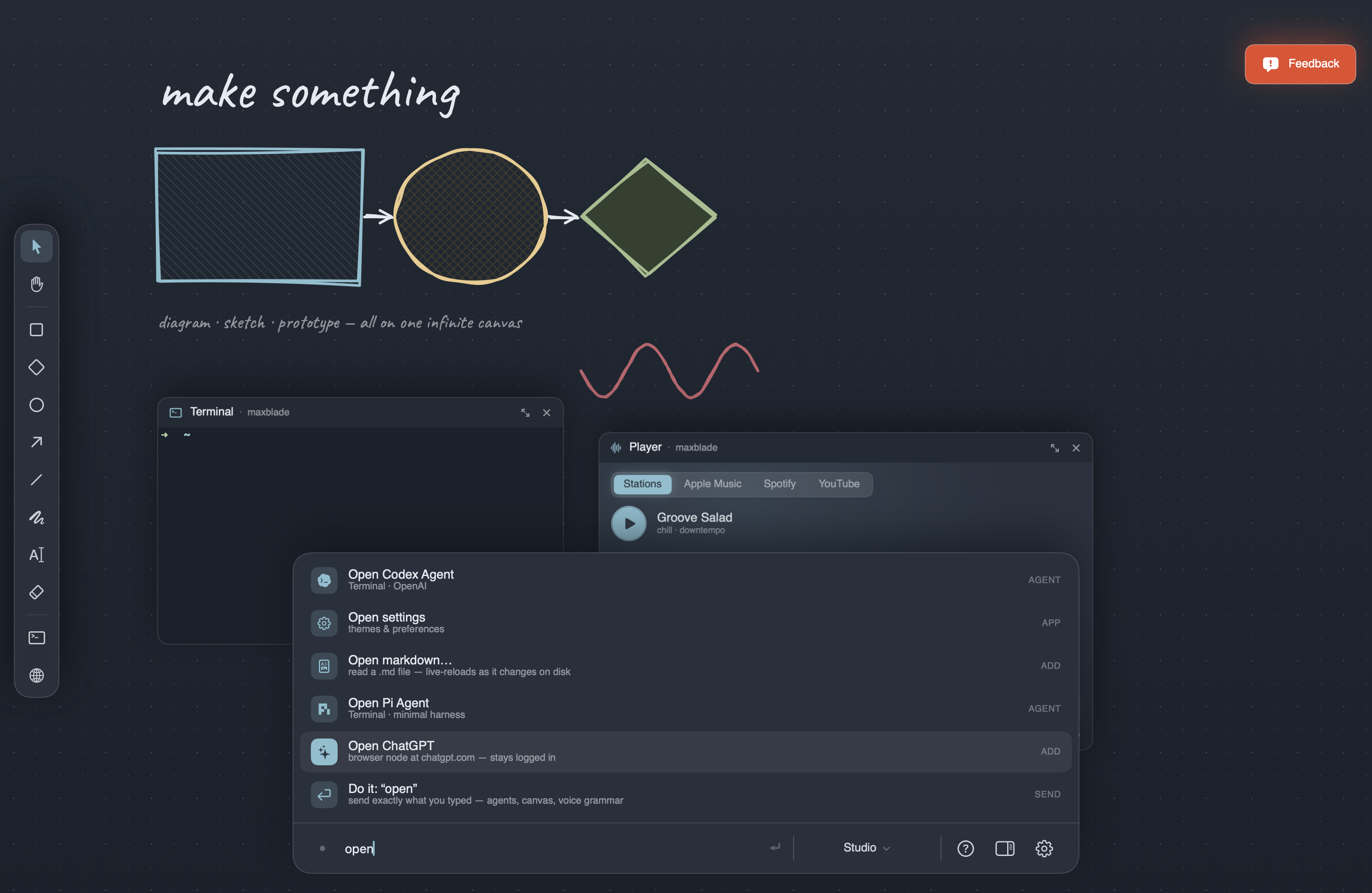
The command bar at the bottom and the ⌘K palette used to be two separate things that did overlapping jobs. They’re now a single element.

Start typing in the bar and it grows upward with ranked ⌘K results — best match nearest your cursor. Press ⌘K and the same bar opens in browse mode with the full list and the keyboard already in it. The centered modal is gone.

The bottom row is always “Do it” — your text sent straight through, exactly as ⏎ always worked. Short queries pre-select the best command; a full sentence pre-selects “Do it”, so “tell claude to fix the tests” is never hijacked into spawning something.

The command bar with inline ⌘K suggestions

How to use: Just type. ↑/↓ to pick, ⏎ to run, Esc to step back out.

The Stage sidebar, rebuilt

The Stage rail is now a flat, grouped sidebar: needs-you at the top, then agents, then windows. Each agent row is its brand logo, its call sign, and its work title in the agent’s own colour. Browsers, the music player, and other windows finally have their own group instead of being mixed in with your fleet.

Rows only move when something flips to needs-you. Nothing else reorders, so the sidebar stays a stable map of your canvas.

Stage mode with the new grouped sidebar

Stage mode, no mouse

  • ⌘↑ / ⌘↓ — walk every sidebar row, windows included, wrapping at both ends.
  • ⌘← / ⌘→ — cycle canvases, carrying the lens with you.
  • ⌘0 grid · ⌘1–9 slots · ⌘J jump to whoever needs you · Esc steps down a level · ⌘⇧0 exits from anywhere.

Spawn an agent while Stage mode is up and it goes straight to the stage with the keyboard in it.

Added

  • Tasks node — a live task list for the canvas: who’s working, what’s done, what’s blocked. Add it from ⌘K.

Fixed

  • Switching canvases while Stage mode was live could leave a ghost browser page floating over the stage and sidebar, and canvas drawings or dropped images bled through the staged card and made it unreadable.
  • Closing Grok Voice by saying “go to sleep” left it unable to reopen properly.
  • ⌘←/→ and ⌘↑/↓ never fired on a real keyboard — arrow keys carry hidden modifier flags that the shortcut comparison rejected.
  • ⌘↑/⌘↓ skipped window rows, stranding the browser and music player behind number keys.
  • A Fleet lens over an empty canvas rendered a black void.
  • Grok Voice named agents after the CLI it just opened (“Kimi”) instead of using your naming scheme.
  • Music transport and volume commands now address whatever is actually playing, including a player on another canvas.

Improved

  • Agent status was rebuilt around what a harness can honestly report — idle, working, needs you — instead of guessing from screen output and timers. Fewer agents stuck on “working” after they’ve finished, no more false “done” during a long silent tool run.
  • Sidebar legibility is now AAA on every theme, including the video-backed glass ones.

Shorthand is about the gap between running a lot of agents and actually knowing what they’re doing. The titles close it; the command bar and the keybinds make acting on what you see a single keystroke.

Version 1.3.2 Permalink

CNVS 1.3.2 — Nightglass

Nightglass is the first formal CNVS release note: a foundation release for the native Mac canvas, the agent workspace, voice control, and the cinematic product language that everything else will build on.

CNVS is becoming a calmer way to build software with AI: not another chat box, not another terminal wrapper, but a spatial creative environment where agents, browsers, terminals, projects, and ideas can live together on the same surface.

A native canvas for building with AI

CNVS now has its core shape: a native Mac workspace built around an infinite canvas. Instead of forcing every action through a linear chat thread, CNVS gives projects a place to spread out visually — terminals, agent sessions, browser previews, music, sketches, and working context can all coexist on one persistent creative surface.

Voice became a product pillar

Voice control is no longer a side experiment. CNVS now supports a growing voice-native workflow for directing the app, moving between canvases, controlling layouts, spawning agents, prompting sessions, and navigating creative work without constantly dropping back to the keyboard.

Agents, projects, and canvases are coming together

This release brings the early shape of multi-canvas project work into focus: persistent canvases, project-bound terminals, detected coding agents, smoother navigation, and workspace organization tools that make complex builds easier to see, steer, and manage.

A quieter, more cinematic interface

Nightglass also marks a major pass on the feeling of CNVS. Themes, typography, launcher polish, aura effects, canvas transitions, and visual restraint push the app toward a more intentional identity: less noise, more atmosphere, and a workspace that feels spacious, focused, and alive.

A foundation for external control

CNVS is beginning to become programmable from the outside. Early control surfaces like the local control server, command-line tooling, and MCP-style integration point toward a future where the workspace can be driven by other tools, other agents, and eventually by Spring herself.


Nightglass wraps the first era of CNVS into one milestone: the canvas, the voice layer, the agent workspace, the project system, the cinematic identity, and the first external-control foundations. Future release notes will be more specific. This is the baseline — the moment CNVS became legible as a product.