CNVS 1.5.2 — Distraction Guard
Stop watching your agents. When one finishes, fails or needs you somewhere you can't see, CNVS tells you once, in the right place — a tile by the command bar, a macOS notification, and now your iPhone.
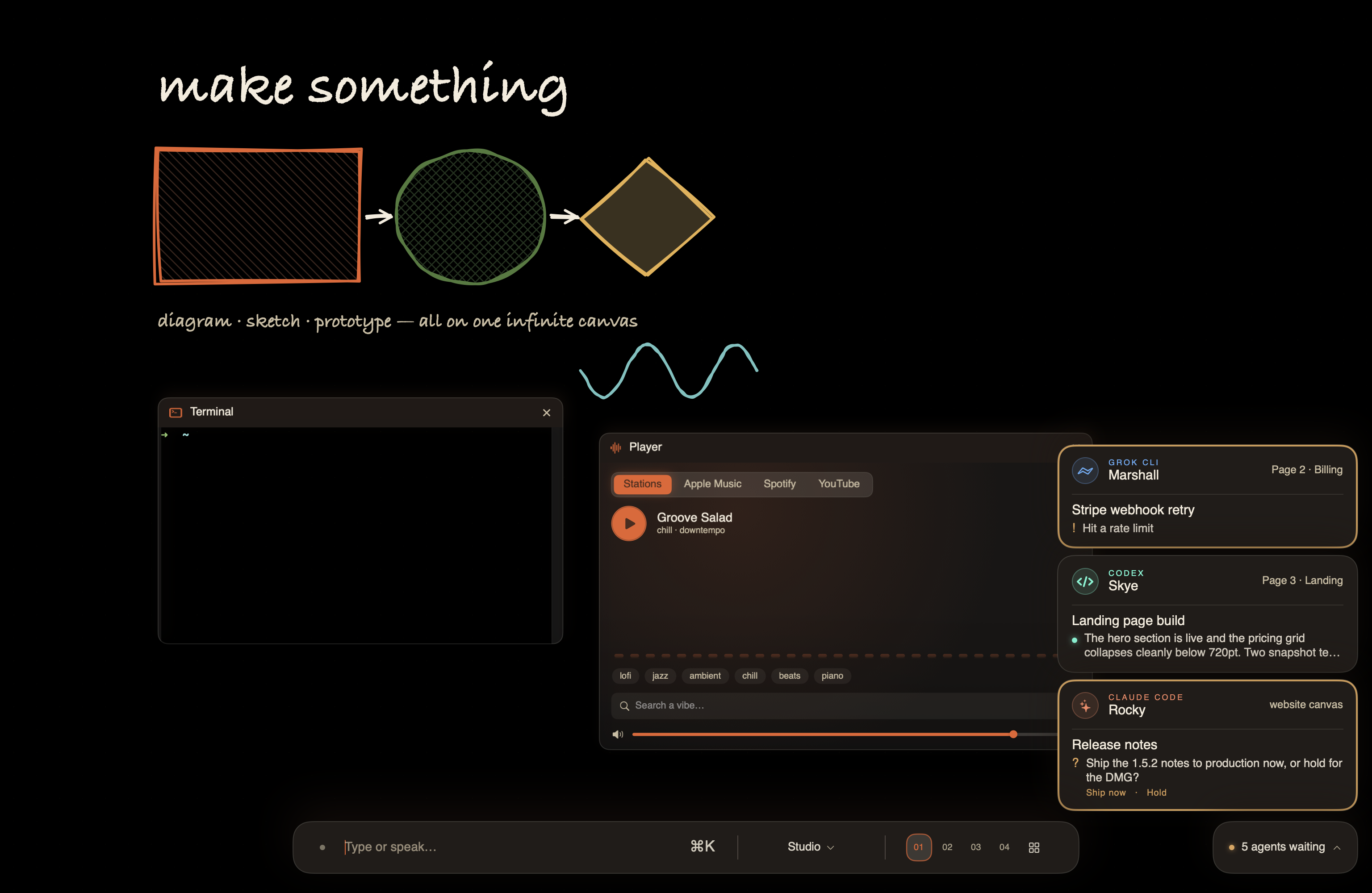
Running a fleet has had a quiet tax: you keep flipping between pages and canvases to check whether anything finished, or you don’t, and an agent sits blocked on a yes/no for twenty minutes. Either way the agents are steering your attention instead of the other way round.
Distraction Guard is the system that ends the checking. You work on one thing. CNVS watches everything else and interrupts you exactly once, with the agent’s own words, only when there is something for you.
A tile when you can’t see the agent
When an agent finishes, fails, or needs you — and its card is not in view — a tile rises at the bottom-right, cut from the same chrome as the command bar.
The tile is the agent’s card in miniature. It shows which CLI it is, its call sign, where it lives (“Page 2 · Billing”, “relay canvas”), the job’s title, and then the body verbatim: the reply it gave, the question it’s asking with the CLI’s own options, or the failure. Nothing is paraphrased. Questions and failures wear an amber edge; a finished reply just carries the unread dot.
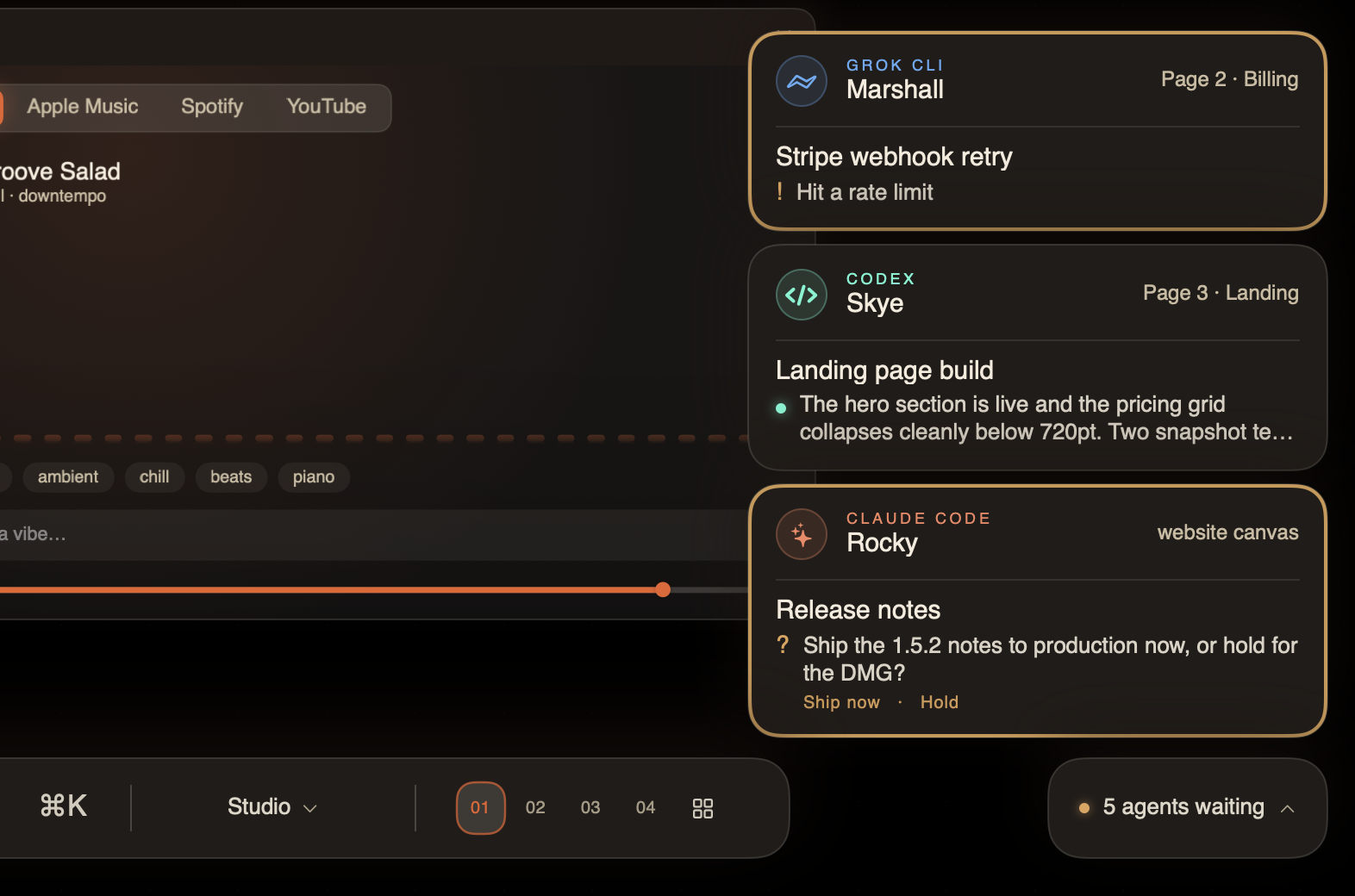
Click a tile and CNVS takes you to that agent — across pages, across canvases.
How to use: Nothing to set up — it’s on by default. Click a tile to go to the agent, or × to dismiss it.
Nothing gets lost
A notification that disappears on a timer is a notification you miss. So a tile is never deleted by time or by navigation.
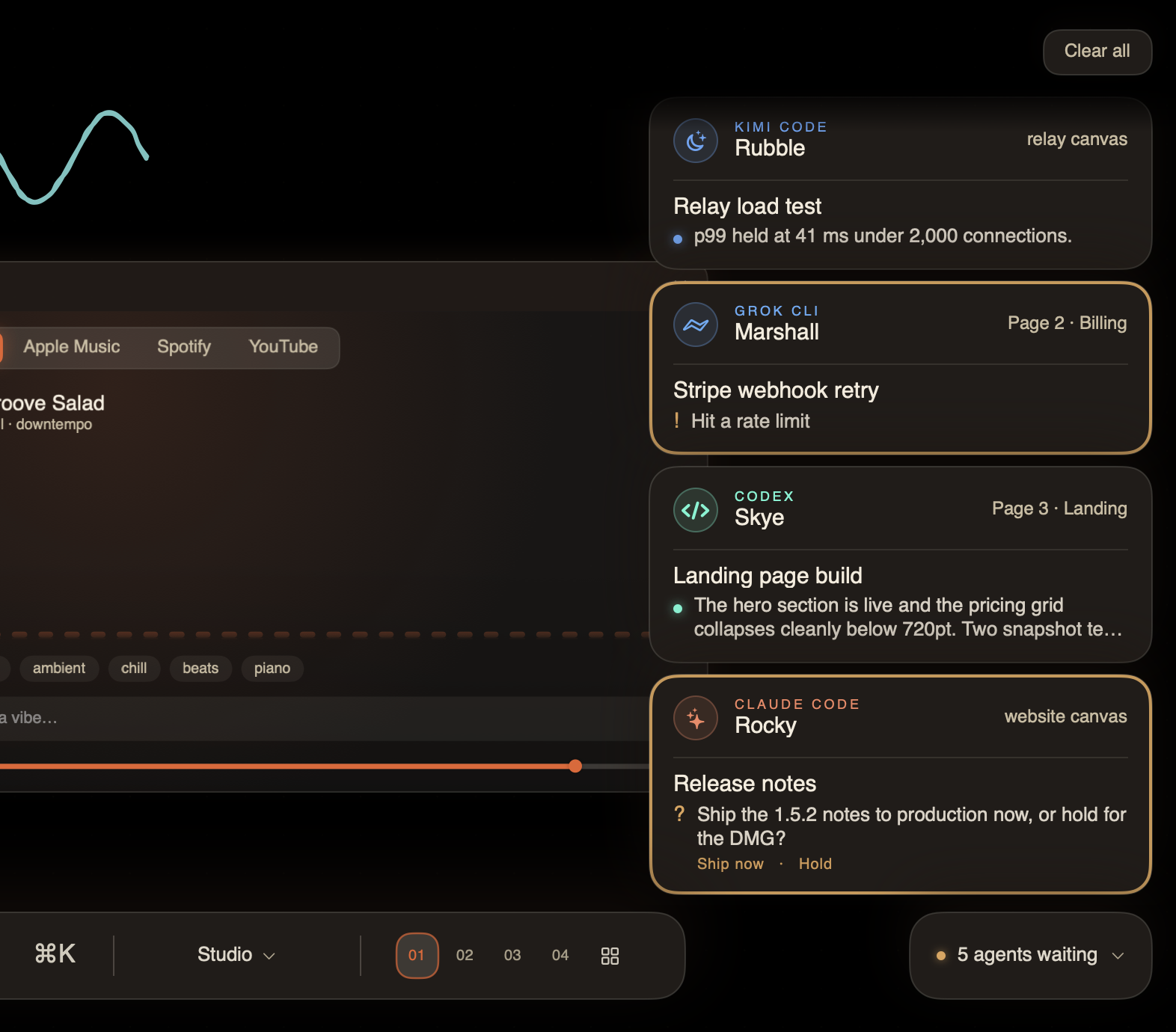
A finished tile stands for a few seconds (a failure a little longer), then tucks into a chip on the command bar’s baseline: “Skye is waiting”, or “5 agents waiting”. The dot turns amber if a question or a failure is among them. Click the chip and every tile rises back out; click again and the stack folds away as one piece.
A question never tucks itself away — it stays up until it’s answered. A tile only leaves when you focus that agent, click the tile, press its ×, or hit Clear all.

One surface speaks, never two
Every event picks exactly one place to appear:
- You’re looking at the agent’s card — the card is the notification. Its body changes and its edge lights up. No tile.
- You’re elsewhere in CNVS — another page, off the viewport, another canvas, or zoomed out on the map — the tile.
- CNVS is in the background — a macOS notification, now with the agent’s name, the job, and the same verbatim words. Click it and you land on that agent.
- You just typed into that agent — nothing at all. You already know.
The bell and the spoken callout (“Sky is done with the landing page build”) work as before, and stay silent while you’re looking at that agent.
Your iPhone rings too
If you’ve paired an iPhone with CNVS Pocket, the phone now gets the same alerts as a real push notification. It works like a phone call that rings on both: the Mac’s notifications don’t change, and the phone hears it as well — so walking away from your desk never means missing a blocked agent.
A question arrives with its options on the lock screen and is delivered Time Sensitive, so it reaches through a Focus. Tap the notification and Pocket opens on that agent.
Alerts are end-to-end encrypted. The Mac seals each one with a key derived from your pairing; our relay forwards an opaque box it cannot read; your phone opens it on-device. We never see what your agents said.
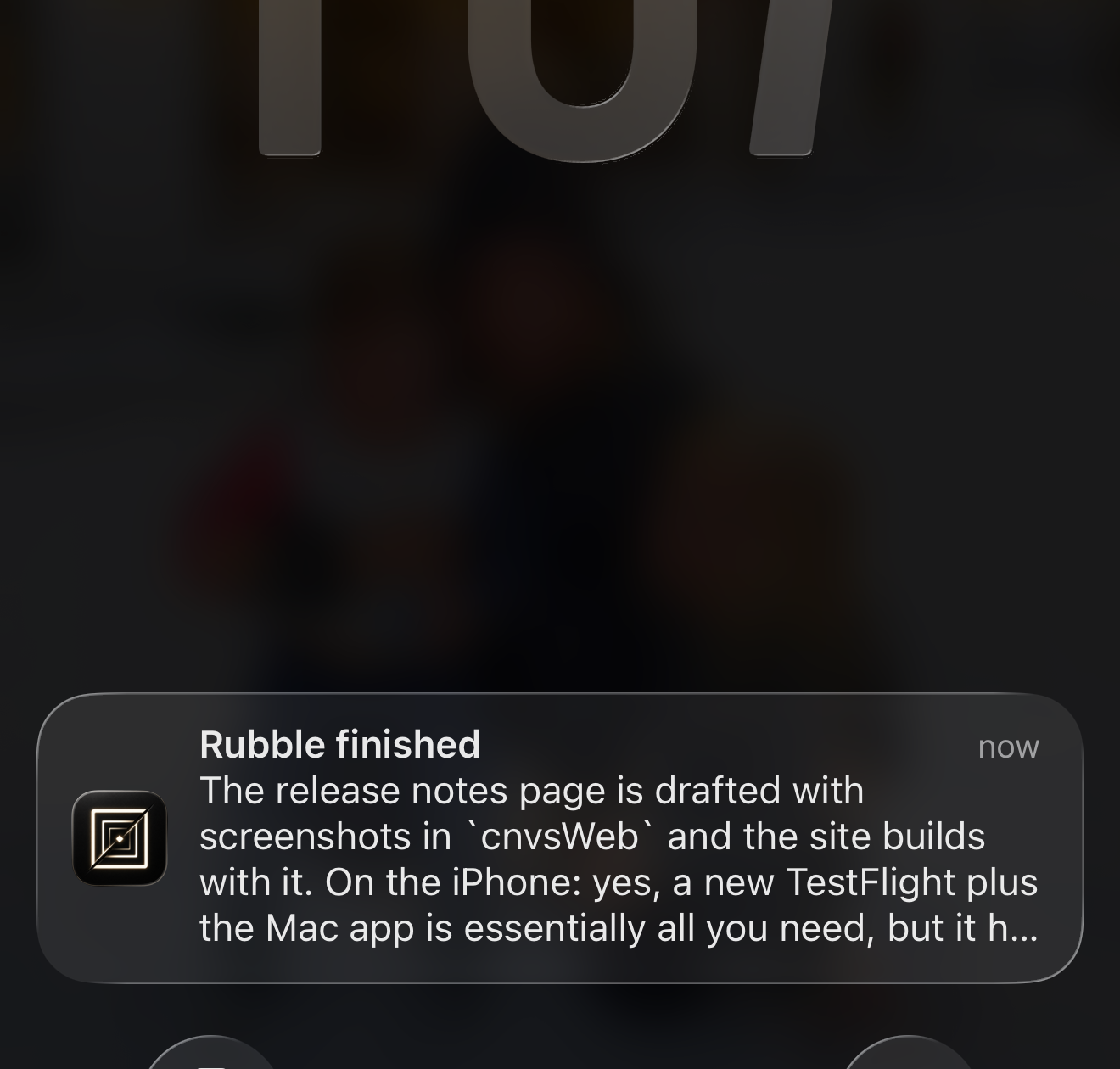
How to use: Update CNVS Pocket on your iPhone, open it, and say yes when it asks about notifications. On the Mac, Settings ▸ Pocket has two switches — Questions & failures on my phone and Finishes on my phone. Both start on; turn finishes off if a busy fleet is too much.
The card’s body is the state
The agent card dropped its status pills and timestamps. The body now says what is actually happening:
- Working — the tool it’s running right now.
- Finished — its reply, verbatim, with an unread dot and one bell.
- Needs you — its question, verbatim, with an amber edge.
- Nothing worth saying — nothing shown.
CNVS reads these from the CLI’s own transcript rather than guessing from the screen, which is why the tile, the macOS notification and the phone can all quote the agent exactly.
One switch
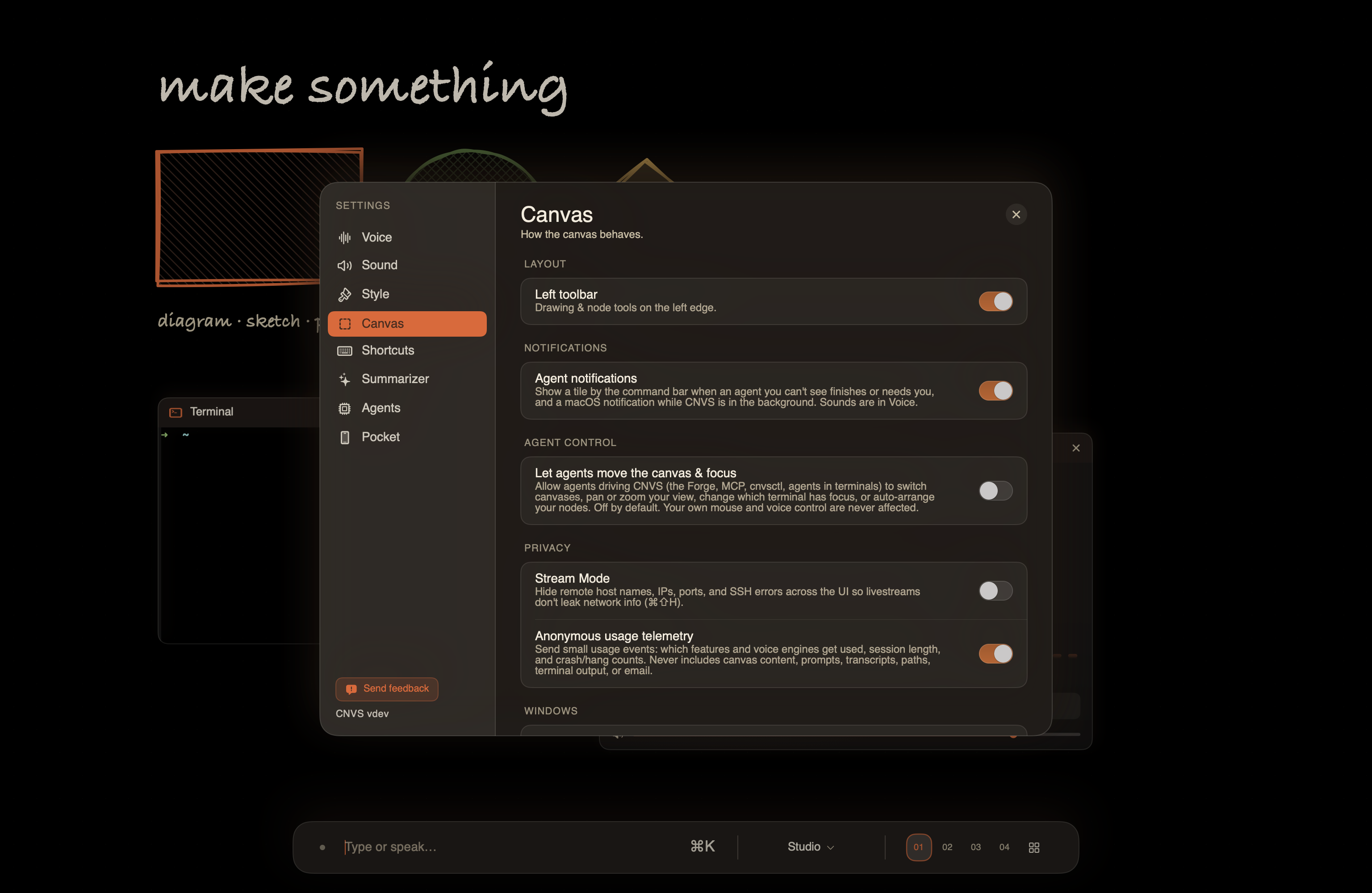
How to use: Settings ▸ Canvas ▸ Agent notifications turns the tiles and the macOS notifications off together. Sounds and spoken callouts are separate, under Settings ▸ Voice.
Added
- Cupola — a new theme: the spacecraft cabin computer.
- Page titles — name a page and the title rides its chip and heads its sheet on the map.
- The shelf — zoom out past the map and every canvas sits side by side, the third camera altitude. With the default four pages, ⌘5 is the map and ⌘6 opens and closes the shelf.
- Native status for Kimi, Qwen, Grok and OpenCode — these CLIs now report working / needs-you / finished natively instead of being read off the screen.
- “Say who finished” — after the bell, CNVS can speak the agent’s name and task (Settings ▸ Voice).
Changed
- ⌘-arrows never leave the page. ⌘←↑↓→ moves between windows on the current page and stops at the edge. ⌘[ / ⌘] changes pages, ⌃Tab changes canvases. ⌘←/→ no longer cycles canvases.
Fixed
- A steering message (“also fix the footer”) no longer retitles the whole job — the summarizer now remembers the thread of what you asked.
- Tapping the talk key by accident, with nothing said, ends quietly instead of replying.
Improved
- One border per card: selection, working and needs-you repaint the same line instead of stacking rings.
- The fleet briefing’s back face is the summary alone, set in the display serif.
- The Usage node’s ledger scales with the size of its tile.
- Terminal engine updated (SwiftTerm 1.20).
The goal of a fleet is to get your attention back, not to spend it on supervision. Distraction Guard is the part of CNVS that holds up that end of the deal: you look at one thing, and everything else comes to you.